
How to Use the Democruit Chrome Extension
Save job listings as you browse, organize promising roles, and sync them to Democruit for a clearer job-search workflow.
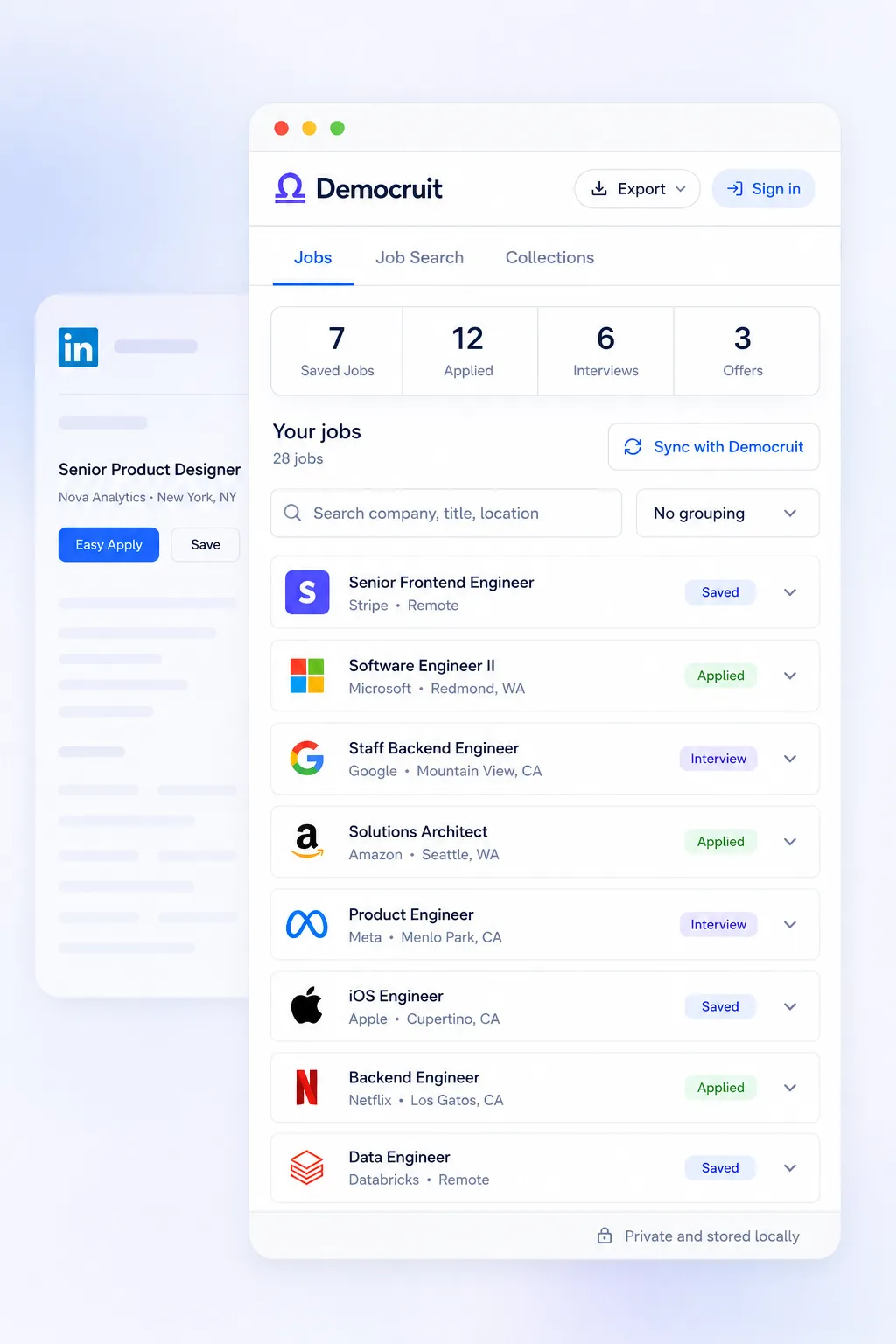
The Democruit Chrome extension helps you save job listings while you browse, so promising roles do not get lost among open tabs, bookmarks, and copied links. On supported job sites, it captures the listing details and original URL. You can organize saved roles in the extension, then sign in to synchronize them with your Democruit job tracker when you are ready to move from browsing to applying.
Why use the extension?
Job searching often starts with scattered research. You may find a role on one board, compare it with another listing, then lose track of which one was worth revisiting. Saving each relevant listing at the moment you find it creates a single working list before the details become hard to recover.
The extension is most useful when you want to do three things consistently:
- Keep the job title, company, location, description, source, and original link together.
- Build shortlists for different targets, such as product roles, local roles, or companies you want to watch.
- Bring the strongest opportunities into Democruit, where you can tailor a resume and track your next action.
It does not apply to jobs for you. Treat it as a capture and organization tool. You still decide which roles are a real fit, what to submit, and when to follow up.
Install and set up the extension
- Visit the Job Tracker by Democruit page and select Add to Chrome.
- Complete Chrome's installation prompts, then pin the Democruit extension to your browser toolbar if you want quick access.
- Open a job listing on a supported site. The extension supports LinkedIn, Indeed, Glassdoor, ZipRecruiter, Monster, Wellfound, Dice, Greenhouse, Lever, Workday, Ashby, and SmartRecruiters.
- Open the extension from the toolbar. When it recognizes the listing, review the details and select Add job.
- Create a collection if you want to group related roles. A simple starting structure is
Apply this week,Research, andLater.
You can begin without a Democruit account. Saved jobs remain in your browser's extension storage until you choose to sign in. When you connect your account, you can synchronize saved opportunities with your Democruit job tracker.
A practical workflow for each job search session
Use a short repeatable routine instead of trying to evaluate every listing perfectly as you browse.
- Search broadly. Use job titles, skills, locations, and filters that match your target. If you are changing careers, search both your target title and adjacent titles that use your transferable skills.
- Save plausible matches. Save roles that meet your basic criteria, even if you need more time to compare them. Keep the original listing so you can return to the complete description.
- Sort the saved list. At the end of the session, group roles by priority or search goal. Remove listings that are clearly unsuitable or already closed.
- Choose a small application set. Open the strongest roles, read the requirements again, and select the ones that deserve a tailored application this week.
- Synchronize when you need a fuller workflow. Sign in and sync the roles you want in Democruit. Use the job tracker to keep your application work visible and the resume builder to prepare a role-specific resume.
This separation matters. Browsing is for finding opportunities. Reviewing is for deciding whether they are worth pursuing. Applying is for submitting accurate, tailored materials. Treating those as separate steps helps you avoid rushed applications and endless tab collecting.
Best practices for a useful job library
Save early, review on a schedule
Save a promising role while the page is open. Listings can change, close, or become difficult to find again. Then set a daily or weekly review time to decide whether the role should move forward. This is usually more reliable than leaving tabs open as reminders.
Use collections sparingly
Collections should help you make a decision, not create another filing project. Start with two or three clear groups, such as target function, priority, or location. If a collection does not change what you do next, rename it or remove it.
Keep the original source link
The original listing is your reference for requirements, questions, and application instructions. Before applying, reopen it and confirm that it is still active. Do not rely only on a remembered summary when you tailor your resume or prepare interview stories.
Tailor after you choose the role
Do not rewrite your resume for every listing you save. First decide whether the role is a realistic match. Then compare the job description with your experience and make truthful updates to the summary, skills, and most relevant bullets. The ATS-friendly resume guide explains how to do that without adding unsupported keywords.
Sync intentionally
Use local saving when you are still exploring, or when you prefer to organize a small list in the browser first. Connect and synchronize when you want the listing available in Democruit as part of your application workflow. If you have saved jobs both locally and in Democruit, review the sync choice carefully so you keep the library you intend to keep.
Export a backup when it helps
The extension can export saved opportunities. An export can be useful for a personal review, a career-coaching conversation, or a backup of a focused shortlist. It is not a substitute for keeping the application status and next action current in your main workflow.
Two examples
Example: Choosing roles after a broad search
Amara is a customer success manager looking for remote SaaS roles. During a 30-minute search, she finds 14 listings across LinkedIn, Wellfound, and company career pages. She saves all 14 that meet her salary and location requirements rather than deciding immediately.
At the end of the session, she places five roles in Apply this week, four in Research, and removes five that require experience she does not have. She reads the top two descriptions carefully, tailors one resume version for each, and synchronizes those jobs to Democruit. Her saved list supports a deliberate decision instead of becoming a collection of forgotten tabs.
Example: Avoiding duplicate effort across job boards
Mateo sees a product operations role on a job board and later finds the same employer's listing on its Greenhouse page. Before saving a second copy, he checks the company, title, and listing link. He keeps the listing with the clearest and most current application path, then records only the information he needs to act.
This saves time when he reviews his shortlist. It also makes it easier to see how many distinct opportunities he has, rather than mistaking reposts for different roles.
Common mistakes and how to fix them
- Saving every listing without reviewing it. A long list can feel productive but hides the best opportunities. Fix it by scheduling a short review after each search session and removing clear mismatches.
- Using too many collections. A category for every company, source, and day of the week makes sorting harder. Fix it by organizing around a decision, such as priority or target role.
- Applying from memory. Details such as location, work authorization, required tools, and deadlines can change. Fix it by reopening the original link before tailoring or submitting.
- Treating a saved role as an application. Saving is research, not progress in an employer's hiring process. Fix it by recording the actual next action and updating your tracker after you apply.
- Adding keywords that do not reflect your experience. A job description can guide your language, but it cannot create qualifications. Fix it by naming comparable work you can explain, or by choosing a role that better matches your current background.
- Waiting too long to save a strong lead. A listing can be hard to locate after you close the tab. Fix it by saving first, then deciding whether it belongs in your priority list.
Privacy and account connection
On supported job pages, the extension reads publicly visible listing details so it can save the role you are viewing. It does not submit applications or take action on job sites on your behalf. Jobs saved before you sign in are stored locally in your browser. When you sign in and synchronize, saved job details can be added to your Democruit account.
You can sign out to disconnect the extension from your account. Local extension data remains on your device until you remove the extension or clear its storage in Chrome. Read the Democruit Privacy Policy for the current details about extension data.
Checklist for your next search session
- The extension is installed and easy to reach from the Chrome toolbar.
- I save promising listings while their complete details are open.
- My collections reflect a decision I need to make, not every possible label.
- I review saved roles before I tailor or apply.
- I reopen the original listing to confirm requirements and application instructions.
- I use only keywords and claims I can support with real experience.
- I synchronize selected roles to Democruit when I need to track the application work.
Frequently asked questions
Do I need a Democruit account to use the extension?
No. You can save and organize jobs locally in the extension without signing in. Sign in when you want to synchronize saved jobs with your Democruit account.
Does the extension apply to jobs automatically?
No. The extension saves listing details from supported sites. You review the listing and submit each application yourself.
What should I do if a listing is not recognized?
Confirm that you are viewing an individual listing on a supported site, then reload the page and open the extension again. If the role is still not detected, keep the listing open and use the original link as your reference while you continue your search.
Should I save jobs that are only a partial match?
Yes, if the role meets your basic criteria and you need time to assess it. During review, compare the core requirements with your evidence. Do not apply merely because a role was saved.
Continue learning
For a stronger search routine, read How Do I Search for Jobs Effectively? and What Is a Job Search Strategy?. When you choose a role to pursue, use Democruit to prepare a focused resume and track the next step.
Related articles
How do I search for jobs effectively?
Get a clear, practical answer to how do i search for jobs effectively, with the next step for a stronger job application.
How to Use the Democruit Resume Builder
Create, tailor, and review a resume in Democruit using focused sections, role-specific content, and a clean export-ready layout.
How to Write an ATS-Friendly Resume
Learn how to format, tailor, and proofread a resume that applicant tracking systems and recruiters can read clearly.