
How to Import Your Resume into Democruit
Upload an existing resume to Democruit, review the imported content, and correct details before you tailor or export it.
Importing a resume lets Democruit create an editable starting point from a document you already have. Review every imported field before using the resume for an application. Imported content can need cleanup when the source file uses tables, columns, graphics, or unusual headings.
Before you import
Keep the newest version of your resume nearby. A text-based PDF or DOCX file is usually easier to extract than a scanned image. If your resume is a scan, create a clear text version first so you can verify the information accurately.
Import your file
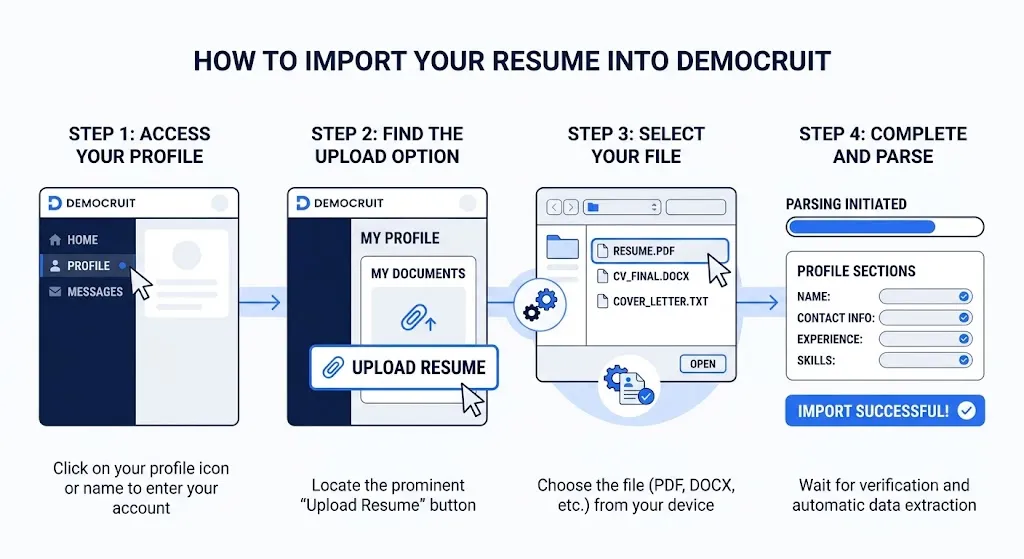
- Open Democruit and start a new resume.
- Choose the option to import an existing resume.
- Select your PDF or DOCX file and wait for the import to finish.
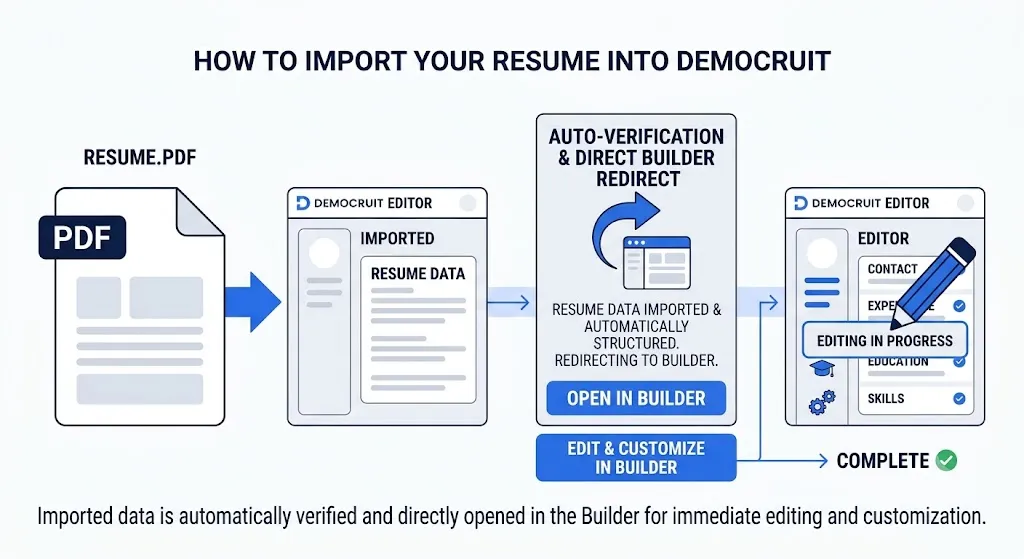
- Open the imported resume in the editor.
Review the imported content
Check the following sections one at a time:
- Contact details: Confirm spelling, links, phone number, and location.
- Experience: Confirm employer names, job titles, date ranges, and bullet order.
- Education and certifications: Confirm school names, credentials, and dates.
- Skills: Remove duplicates and correct skills that landed in the wrong section.
- Formatting: Check that headings, line breaks, and lists are readable in the chosen template.
If a section did not import correctly, edit it manually. The source document remains your reference, but the new version should be the accurate record you will tailor.
Use the import as a content audit
An import is also a good moment to find outdated content. Check whether your current phone number, email, LinkedIn link, role titles, and employment dates are still correct. Remove duplicated skills, stale coursework, and old objective statements that no longer represent your direction. Add recent achievements that may not be in the original file yet.
If the imported resume uses a complex visual design, focus on the content first. You can choose a clean template after confirming the facts. This separates the task of recovering information from the task of presenting it clearly.
Before you continue
Save the reviewed resume with a clear name. Then create a targeted version for the role you want, rather than editing your only master copy. See How to Use the Democruit Resume Builder for the tailoring workflow.
If your information is missing or out of order
Open the affected section and add or move the content manually. Resume parsing works by interpreting document structure, so heavily designed source files can split one idea across fields. A simpler source usually produces a cleaner first draft.
Next steps
After review, use the resume builder to tailor the content to a role. For formatting guidance, read How to Write an ATS-Friendly Resume.
Related articles
How to Use the Democruit Resume Builder
Create, tailor, and review a resume in Democruit using focused sections, role-specific content, and a clean export-ready layout.
How to Write an ATS-Friendly Resume
Learn how to format, tailor, and proofread a resume that applicant tracking systems and recruiters can read clearly.
Can an ATS read a PDF resume?
Get a clear, practical answer to can an ats read a pdf resume, with the next step for a stronger job application.